
Word 2003 provides a seamless interface for creating both Word (*.doc) and Web (*.htm) documents.
Because the HTML (HyperText Markup Language) format is a native file format, you
can save any .doc file as an .htm file, and vice versa. Word saves the .doc formatting as well
as the .htm formatting. This allows you to create Web documents in Word for viewing in a
Web browser. Word also reads those documents back in for editing, however. When any Word
document is saved as a Web page, almost all the document’s information, including its content,
formatting, and document properties, are retained in the HTML document.
Saving a document as a Web page is easy. Choose File➪Save as Web Page, which displays the
Save As dialog box with the .htm file name extension already selected. You can save the document
by clicking Save. Clicking Change allows you to change the page title for the document,
which appears on the title bar of the Web browser window. You also can save a Word document
as a Web page from the Save As dialog box, just as you would any other file format—
select the format from the Save As Type drop-down menu.
Saturday, August 22, 2009

Using the Office Assistant
By default, the Office Assistant is always on the screen. Click the icon to receive help on any
subject, and a box appears that prompts you for a search phrase. Press Enter, and the Help
task pane opens with the search results. Right-click the Office Assistant to display a pop-up
menu of Office Assistant options. Choosing Hide hides the assistant, but only during the current
session. The next time you open Word, the assistant will be back (although if you keep
hiding it, eventually it will ask if you want to hide it for good).
If the Office Assistant is not your preferred way to get help—quite frankly, it can be very
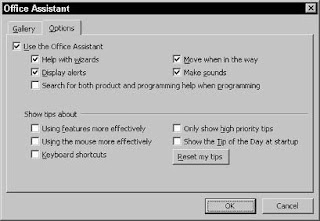
irritating—you can deactivate it. Right-click the icon and choose Options to display the
Office Assistant dialog box , which allows you to alter the situations in
which Office Assistant offers help. Clear the Use the Office Assistant check box to permanently
hide it. (Even with the Office Assistant shut off, you can display it anytime by choosing Help➪
Show the Office Assistant.) In the Gallery tab, you can select a different assistant. You also
can access the Gallery tab by choosing the Choose Assistant item in the pop-up menu.
The Office Assistant really isn’t very necessary because you can reach the Help task pane any
time by pressing F1.
subject, and a box appears that prompts you for a search phrase. Press Enter, and the Help
task pane opens with the search results. Right-click the Office Assistant to display a pop-up
menu of Office Assistant options. Choosing Hide hides the assistant, but only during the current
session. The next time you open Word, the assistant will be back (although if you keep
hiding it, eventually it will ask if you want to hide it for good).
If the Office Assistant is not your preferred way to get help—quite frankly, it can be very
irritating—you can deactivate it. Right-click the icon and choose Options to display the
Office Assistant dialog box , which allows you to alter the situations in
which Office Assistant offers help. Clear the Use the Office Assistant check box to permanently
hide it. (Even with the Office Assistant shut off, you can display it anytime by choosing Help➪
Show the Office Assistant.) In the Gallery tab, you can select a different assistant. You also
can access the Gallery tab by choosing the Choose Assistant item in the pop-up menu.

The Office Assistant really isn’t very necessary because you can reach the Help task pane any
time by pressing F1.
Getting Help in Word
Word offers several types of help, as well as different help interfaces. Here’s what you’ll find
on the Help menu:
✦ Microsoft Word Help: Opens the Help task pane, where you can type keywords to
find information, view a table of contents, and find information on the Microsoft.com
Web site.
✦ Show/Hide the Office Assistant: Turns the Office Assistant on and off. You can click
once on the Assistant to ask a question, or right-click to view a menu from which you
can set options. The Office Assistant incorporates IntelliSense Technology to provide
a natural language interface to the system. The Assistant also automatically provides
Help topics and tips on tasks that you perform as you work.
✦ Office on Microsoft.com: Loads the Office Web site into your Web browser. This is a
site that provides updated help information and other technical resources. You also
can download free service release updates and product enhancements, and purchase
third-party add-on tools that let you print postage, translate documents, send faxes,
and more.
✦ Contact Us: Displays the Contact Us page on the Office Web site.
✦ WordPerfect Help: This eases the transition for users switching from WordPerfect to
Word. There is a separate Help dialog box for WordPerfect users, and you can even turn
on an option that automatically tells you how to use a Word feature when you press a
WordPerfect keystroke combination.
✦ Detect and Repair: Runs a utility that checks the Microsoft Office program files for
problems and repairs any problems it finds.
✦ Activate Product: Turns on, or registers, the program.
✦ Privacy Settings: Allows you to modify your Customer Service Improvement Program.
This is a system by which Word can transmit information, across the Internet, about
your hardware and about how you use your computer. This is anonymous information
that Microsoft is using to plan new software and determine problems with Word. It also
allows Microsoft to upload new help information to your system, and a little program
that tracks software errors. By default this system is turned on; you can turn it off if
you prefer, as many users do. How do you decide? It all depends how paranoid (or careful)
you want to be. Do you trust that your information will be used appropriately? If
not, turn it off.
✦ About Microsoft Word: Displays a dialog box that includes information about Word’s
version number, the product’s license, and the system information about your computer
and Windows settings. You will most likely need this information when you call
for technical support. If a Word feature doesn’t seem to be working, click the Disabled
Items button in this dialog box. Word sometimes disables components that are causing
problems (restarting the program may restart the functions).
In addition, you’ll find a Type a Question for Help text box on the right side of the menu bar;
type keywords in here, press Enter, and the Help task pane opens
on the Help menu:
✦ Microsoft Word Help: Opens the Help task pane, where you can type keywords to
find information, view a table of contents, and find information on the Microsoft.com
Web site.
✦ Show/Hide the Office Assistant: Turns the Office Assistant on and off. You can click
once on the Assistant to ask a question, or right-click to view a menu from which you
can set options. The Office Assistant incorporates IntelliSense Technology to provide
a natural language interface to the system. The Assistant also automatically provides
Help topics and tips on tasks that you perform as you work.
✦ Office on Microsoft.com: Loads the Office Web site into your Web browser. This is a
site that provides updated help information and other technical resources. You also
can download free service release updates and product enhancements, and purchase
third-party add-on tools that let you print postage, translate documents, send faxes,
and more.
✦ Contact Us: Displays the Contact Us page on the Office Web site.
✦ WordPerfect Help: This eases the transition for users switching from WordPerfect to
Word. There is a separate Help dialog box for WordPerfect users, and you can even turn
on an option that automatically tells you how to use a Word feature when you press a
WordPerfect keystroke combination.
✦ Detect and Repair: Runs a utility that checks the Microsoft Office program files for
problems and repairs any problems it finds.
✦ Activate Product: Turns on, or registers, the program.
✦ Privacy Settings: Allows you to modify your Customer Service Improvement Program.
This is a system by which Word can transmit information, across the Internet, about
your hardware and about how you use your computer. This is anonymous information
that Microsoft is using to plan new software and determine problems with Word. It also
allows Microsoft to upload new help information to your system, and a little program
that tracks software errors. By default this system is turned on; you can turn it off if
you prefer, as many users do. How do you decide? It all depends how paranoid (or careful)
you want to be. Do you trust that your information will be used appropriately? If
not, turn it off.
✦ About Microsoft Word: Displays a dialog box that includes information about Word’s
version number, the product’s license, and the system information about your computer
and Windows settings. You will most likely need this information when you call
for technical support. If a Word feature doesn’t seem to be working, click the Disabled
Items button in this dialog box. Word sometimes disables components that are causing
problems (restarting the program may restart the functions).
In addition, you’ll find a Type a Question for Help text box on the right side of the menu bar;
type keywords in here, press Enter, and the Help task pane opens
Subscribe to:
Posts (Atom)
